 RU
RU  EN
EN Calculator
Honestly, I don't quite understand why a note needs a built-in calculator. But many users asked for this, so I was forced to do it. 😉 The calculator is a toggled option that you can enable or disable in the "Note Settings" section of the "Settings" menu.
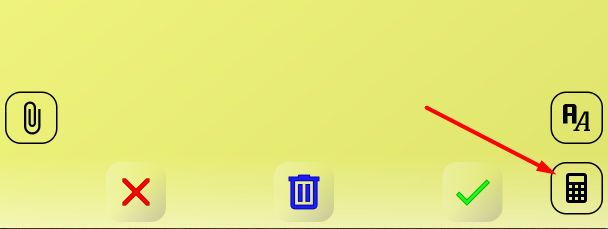
Because the note has a different design in portrait and landscape orientations, the operation, appearance, and layout of the Calculator are slightly different. After you enable this option in Settings for portrait orientation, the calculator button will appear in the lower-right corner of the note:
In landscape orientation, the Calculator button will be located in the upper left corner of the note:
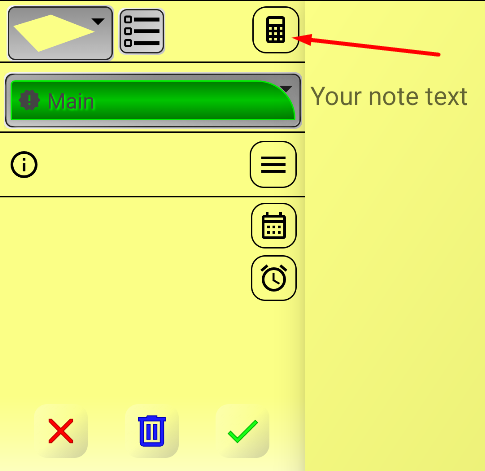
This button is used to both open and close the Calculator. When the phone is held vertically, the Calculator looks like this:
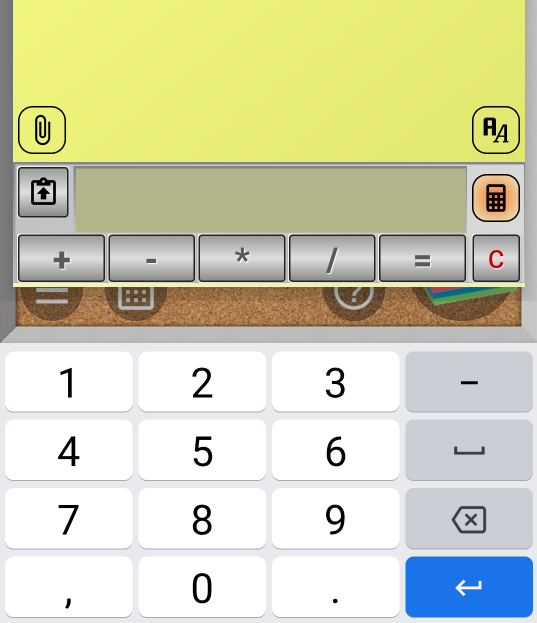
Please note that to prevent the Calculator from obscuring the note text, the on-screen numeric keypad is used for entering numbers. Since not all phone models have the numeric keypad with mathematical symbols, the math operation buttons are separately added and located below the Calculator display. Thus, to enter numbers you use the on-screen keyboard, and for mathematical operations, the corresponding buttons.
When using a tablet or holding the phone horizontally, using the on-screen keypad is not entirely convenient. However, there is room to place the regular Calculator without obscuring the note text:
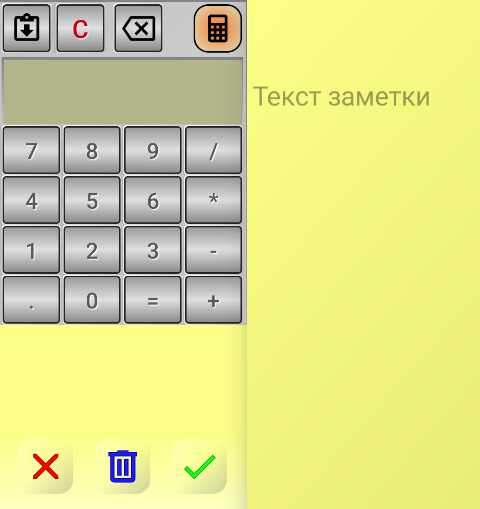
In this case, use the Calculator buttons as you would on a regular calculator.
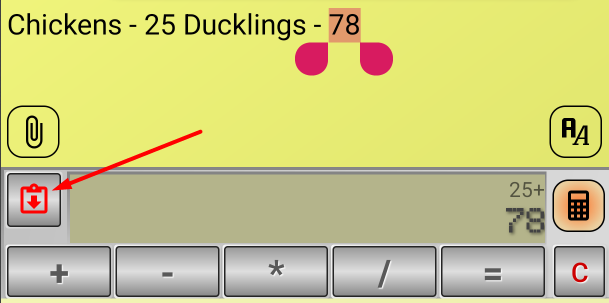
Note the data sharing button in the upper left corner of the Calculator. It makes it easy to exchange numbers between the Calculator and the note text. For example, if there's a number in the note text, you can highlight it, and you'll see the sharing button turn red. If you press it at this point, the number you selected will be inserted into the Calculator as if you had entered it from the keyboard. Next, you can click a mathematical operation symbol, such as "+," and enter another number. Alternatively, you can also copy the number from the text:
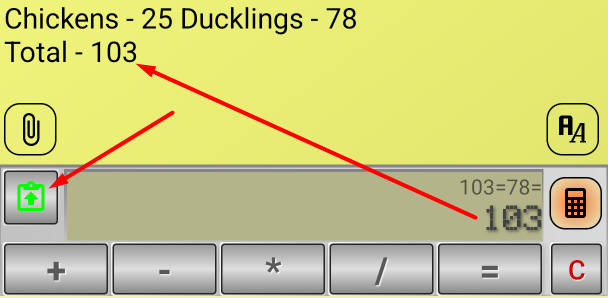
When you click the "=" button to get the result, you'll see the share button turn green. This means that if you click it, the result will be pasted into the note text at the cursor location:
Similarly, you can use the Calculator in the list:
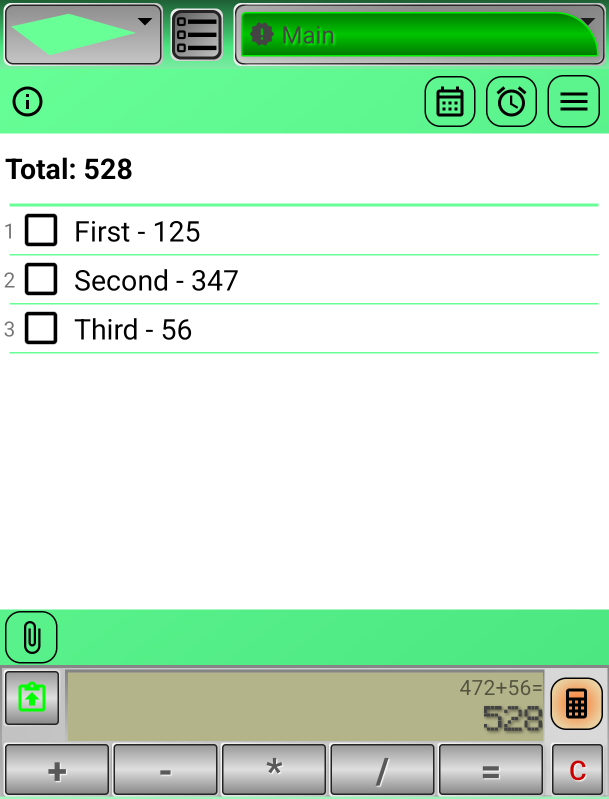
For example, sum the values in the list items and insert the sum into the header.